Google's NotebookLM is a game-changer for students, know more!
Google’s Notebook LM: Your New Study Buddy
Estimated reading time: 10 minutes
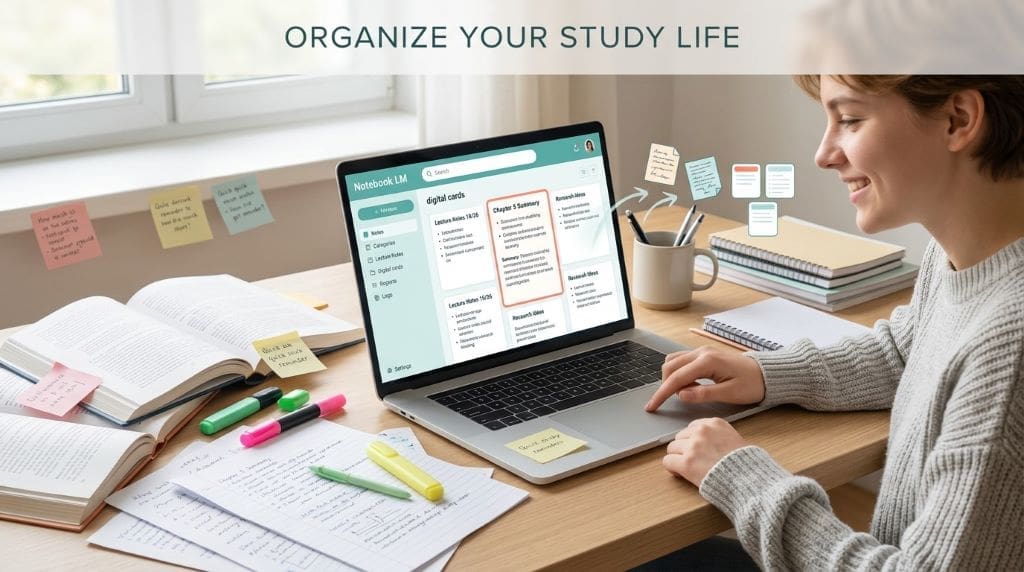
Ever struggled with messy notes before a big test? You’re not alone. Most students face this challenge every single day. Taking notes can feel overwhelming and confusing. Then you forget where you saved that important summary. Google has created something to fix this problem. It’s called Notebook LM, and it’s amazing. This tool acts like your personal study assistant. It organizes your notes and makes studying easier. Best of all, it’s completely free to use. Let’s explore how Notebook LM can transform your study sessions and boost your grades.
Key Takeaways of Notebook LM
- Notebook LM is a free AI tool for students
- Upload documents and get instant summaries
- Create study guides automatically from your notes
- Generate audio podcasts from written content
- Share notes easily with classmates
- Search through all your notes quickly
- Works seamlessly with Google Drive
- Perfect for organizing class materials
- Helps you understand complex topics better
- Saves hours of study time
What is Notebook LM?
Notebook LM is Google’s smart note-taking assistant. Think of it as your digital study partner. It helps you manage all your school materials. You can upload textbooks, articles, and lecture notes. Then the tool analyzes everything you upload. It creates summaries and answers your questions. This means less time searching for information. Instead, you spend more time actually learning.

The tool uses artificial intelligence to work. However, you don’t need to understand AI. Just upload your documents and start asking questions. Notebook LM does the heavy lifting for you. It’s designed specifically to help students succeed.
How Notebook LM Works
Getting Started with Notebook LM
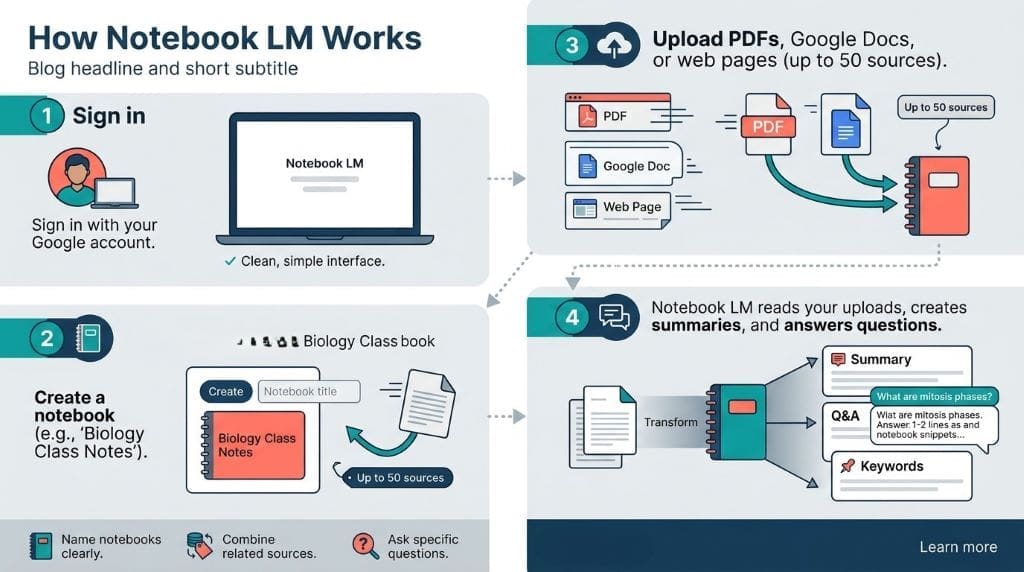
First, you need a Google account to begin. Visit the Notebook LM website and sign in. The interface looks clean and simple. You won’t feel confused or lost using it. Everything sits in easy-to-find spots on the screen.
Next, create your first notebook for a class. Click the “Create” button to start fresh. Give your notebook a clear name. For example, “Biology Class Notes” works perfectly. Then you’re ready to add your materials.
Uploading Your Materials
Notebook LM accepts different types of files. You can upload PDFs from your textbooks. Google Docs from your assignments work too. Even copied web pages can be added. The tool handles up to 50 sources per notebook. That’s plenty of space for most classes.
After uploading, Notebook LM reads everything immediately. It creates an organized system from your materials. You can now ask questions about your content. The answers come straight from your uploaded sources.
Amazing Features That Help Students
Instant Summaries
Need to review a long chapter quickly? Notebook LM creates summaries for you automatically. These summaries capture the main ideas perfectly. You get the important points without reading everything. This saves tons of time during exam prep.
The summaries include key concepts and definitions. They highlight what you need to remember. Additionally, you can customize how long summaries are. Short summaries for quick reviews work great. Longer ones help when you need more details.
Study Guide Generation
Notebook LM can create complete study guides. Just select your sources and click generate. The tool pulls out important information automatically. It organizes everything into clear sections. You get a professional study guide instantly.
These guides include questions to test yourself. They also list important terms and concepts. Moreover, the format makes studying feel less overwhelming. You have everything organized in one place.
Audio Summaries
Here’s something really cool about Notebook LM. It can turn your notes into podcasts. Two AI voices discuss your material conversationally. They explain concepts like teachers talking together. This helps you learn while walking or exercising.
The audio format works differently than reading. Some students understand better when listening. Besides, you can review material without staring at screens. This gives your eyes a much-needed break.
Smart Question Answering
Got a question about your uploaded materials? Just type it into Notebook LM. The tool searches through all your sources. It finds the answer and shows you where it came from. You see the exact citation for each answer.
This feature beats searching through textbooks manually. You save time and reduce frustration. Plus, you learn where information comes from. This helps you cite sources correctly later.
Benefits for Your Studies
Better Organization
Notebook LM keeps all your materials organized. No more lost papers or forgotten files. Everything sits in one digital space. You can create different notebooks for each class. Then organize sources within each notebook easily.
Tags help you categorize information by topics. For instance, tag chemistry notes as “equations” or “reactions.” Later, finding specific information becomes super simple. The search function works incredibly fast too.
Easier Collaboration
Working on group projects becomes much simpler. Notebook LM lets you share notebooks with classmates. Everyone can view the same materials simultaneously. This means the whole group stays updated. No one misses important shared information anymore.
Your study group can add notes together. Each person contributes their understanding of topics. Then everyone benefits from combined knowledge. This creates a stronger learning experience for everyone.
Time-Saving Benefits of Notebook LM
Students waste hours organizing traditional notes. Notebook LM cuts that time dramatically. Upload your materials and get instant organization. The tool does the sorting for you. This leaves more time for actual studying.
Quick summaries mean faster review sessions. You don’t need to reread entire chapters. Instead, focus on key points immediately. This efficiency helps especially during busy exam weeks.
Tips for Using Notebook LM Effectively
Start Small
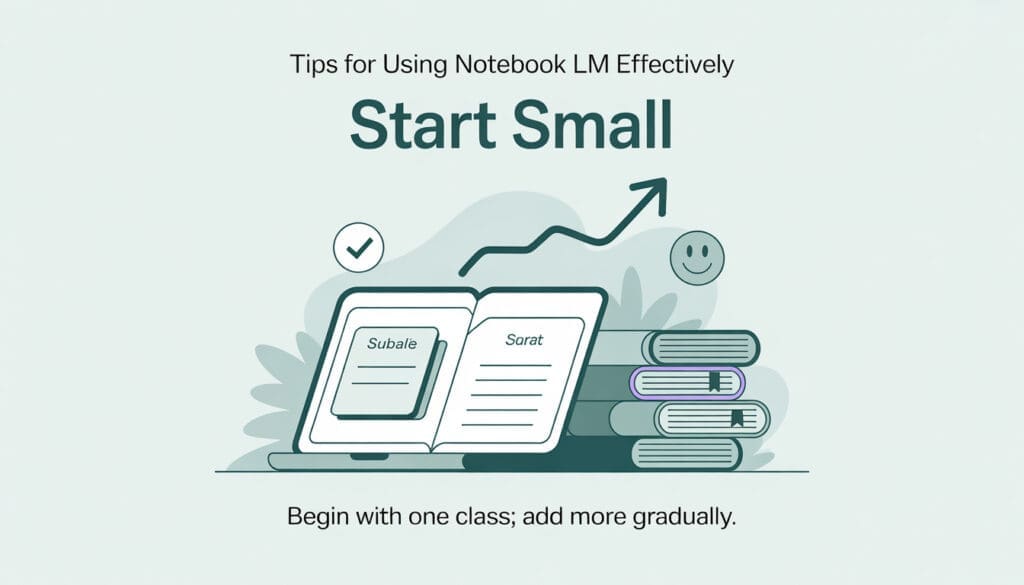
Don’t upload everything at once initially. Begin with one class or subject. Learn how Notebook LM works with smaller amounts. Then gradually add more materials as you get comfortable. This prevents feeling overwhelmed by too much information.
Try different features one at a time. Master the summary function first. Next, experiment with audio generation. Finally, explore the question-answering capabilities thoroughly.
Keep Notebooks Organized
Create separate notebooks for different classes. Name them clearly so you remember contents. Inside each notebook, organize sources by topic. For example, group all chemistry equations together. Keep lab reports in another section.
Add descriptive tags to each source. These tags make searching much faster. Use consistent naming throughout all notebooks. This organizational system becomes more helpful over time.
Review Regularly
Don’t wait until exam week to review. Check your Notebook LM summaries every week. This keeps information fresh in your mind. Regular reviews help you remember things better. The tool makes this process quick and easy.
Create study guides throughout the semester. Don’t save everything for the last minute. Building materials gradually reduces stress. You’ll feel more prepared when tests arrive.
Use Audio Features of Notebook LM
Try the audio summary feature regularly. Listen during your commute to school. Play them while doing chores at home. This maximizes your study time throughout the day. You learn without setting aside extra time.
Audio learning works great for different subjects. History and literature especially benefit from discussions. Science concepts become clearer when explained conversationally. Experiment to see what works best for you.
Limitations of Notebook LM to Know
Learning Takes Time
Notebook LM isn’t instantly perfect for everyone. You need time to learn its features. The first week might feel confusing sometimes. However, the effort pays off quickly. Soon you’ll wonder how you studied without it.
Watch tutorial videos if you feel stuck. Read the help documentation for specific questions. Practice using features on small assignments first. Your confidence grows with regular use.
Works Best with Google
Notebook LM integrates smoothly with Google services. Google Docs upload instantly without problems. PDFs and other formats work too. However, some file types might need conversion first. This occasionally requires an extra step.
If you use Apple Notes or Microsoft OneNote, transferring takes effort. You’ll need to export files first. Then upload them to Notebook LM manually. This isn’t difficult but requires extra time.
Internet Connection Required
You need internet to use Notebook LM. The tool works entirely in your browser. This means studying offline isn’t possible. Make sure you have reliable internet access. Download important summaries beforehand if needed.
Mobile data works for basic features. However, uploading large files needs stronger connections. Wi-Fi works best for most tasks. Plan accordingly when studying away from home.
Privacy and Security
Your Data Stays Safe
Google takes privacy seriously with Notebook LM. Your uploaded materials remain completely private. Nobody else can see your notebooks. The company doesn’t share your study materials anywhere. You control everything you upload and create.
The tool uses encryption to protect information. This means your data stays secure always. You decide what to share with others. Privacy settings give you complete control.
You Control Everything
Delete materials whenever you want from notebooks. Remove entire notebooks if you choose to. Notebook LM gives you full ownership of content. Your notes belong to you completely. The tool simply helps you organize them better.
Sharing happens only when you choose it. You pick which classmates see your materials. Revoke access anytime you want to. This flexibility helps you study your way.
Getting Started with Notebook LM Today
Sign Up Process
Visit the Notebook LM website right now. Sign in using your Google account. Students usually already have these accounts. If not, creating one takes just minutes. The whole setup process runs quickly.
After signing in, you’re ready immediately. No complicated setup steps exist here. The interface guides you through creating notebooks. Start small with one class initially. Then expand as you feel comfortable.
Try These First Steps
Upload notes from your easiest class first. This helps you learn without pressure. Create a summary of one chapter initially. See how Notebook LM organizes the information. Ask a few questions about the content. Get comfortable with how answers appear.
Next, try generating a study guide. Review it to see what’s included. Make adjustments if needed for your preferences. Then experiment with the audio feature next. Find what works best for your learning style.
Is Notebook LM really free for students?
Yes, Notebook LM is completely free to use. Students 18 and older in the U.S. get free pro access with even more features. You just need a Google account to get started.
Can I use Notebook LM on my phone?
Yes, Notebook LM has mobile apps available. You can access it from your phone or tablet. However, uploading large files works better on a computer.
How many documents can I upload to one notebook?
Each notebook can hold up to 50 sources. This includes PDFs, Google Docs, and web pages. That’s plenty of space for most classes.
Will my teachers be able to see my notes?
No, your notebooks stay completely private unless you share them. You control who sees your materials. Only people you specifically invite can view your notebooks.
Can Notebook LM help me with subjects besides reading?
Yes, Notebook LM works for all subjects. It handles science, math, history, and literature equally well. Upload textbooks, lab reports, or study guides from any class.
Conclusion
Notebook LM changes how students study today. It saves time and reduces stress. Your notes stay organized and accessible always. The tool helps you understand difficult concepts better. Best of all, it’s completely free to use. Give it a try for your next test. You might be surprised how much it helps.
Start using Notebook LM this week. Upload materials from one class initially. Experiment with different features gradually. Soon you’ll have a powerful study system. Your grades might improve while studying feels easier. That’s the magic of having a smart assistant.
References
- Google. (n.d.). NotebookLM. https://notebooklm.google.com
- Google Blog. (n.d.). 6 ways to use NotebookLM to master any subject this school year. https://blog.google/technology/ai/google-labs/notebooklm-student-features/
- Google for Education. (n.d.). NotebookLM: Generative AI tool for teachers & students. https://edu.google.com/intl/ALL_us/ai-notebooklm/
- Google for Education. (n.d.). NotebookLM for students. https://notebooklm.google.com/students
- Notebook LM Guide. (n.d.). Google Notebook LM: A comprehensive guide. https://sites.google.com/view/notebook-lm
- Tucker, C. (2025, February). Increasing accessibility with AI: How NotebookLM supports diverse learners. Catlin Tucker. https://catlintucker.com/2025/02/notebooklm/
- Author
- Latest Posts

My name is Pratik Kadam, and I have completed my degree in Computer Science Engineering. I enjoy working with technology to create solutions that are practical, thoughtful, and meaningful.
During my academic journey, I have been involved in projects and collaborative work that strengthened my understanding of the complete software development lifecycle—from initial idea to final implementation. I have built a solid foundation in key computer science subjects such as Operating Systems, Computer Networks, Database Management Systems (DBMS), and Data Structures, along with gaining hands-on technical experience.
I am comfortable working in team environments, sharing ideas, and taking initiative when needed. I value continuous learning and regularly explore new tools and technologies to enhance my skills. I look forward to connecting with people who are building impactful solutions and contributing to projects that make a difference.