Learn how to convert static image data to an editable document easily and save time and effort on retyping.
How to Convert Static Image Data to an Editable Document?

Estimated reading time: 5 minutes
Let’s be honest: how many times have you written down everything from scratch despite having that information in digitized form? It can be a screenshot from an email, a scanned document, or photo of notes. The information already exists yet you still end up retyping it again.
Unwanted hassle, no?
This is exactly why you need to know how to convert static image data into an editable document which you can reuse as required. It saves time, reduces errors, and stops unnecessary duplication.
3 Methods to Convert Static Image Data into an Editable Document
Now, let us walk you through the top 3 methods you can use for image to text conversion without data omission and additional hassle.
Manual Transcription
The very first yet time-consuming method is manual transcription, which relies entirely on human effort rather than any form of automation. Yes, it requires you to write the data from scratch.
Honestly, it creates unwanted hassle. Let’s say you have a bundle of static image data in editable format. It will increase your burden and reduce efficiency. Right? However, the manual transcription method is still usable in specific situations and small tasks such as short paragraphs, limited form fields, or brief notes.
It follows a straightforward path:
- Open the image in a viewer
- Adjust the zoom for readability
- Read the content line by line
- Type the same text into a document editor.
You’ll have to give it a final review against the original image to ensure accuracy before basic formatting.
OCR-Powered Image to Text Conversion
OCR-powered image to text conversion relies on intelligent text recognition rather than human retyping. The image contains visual characters. Right? So, OCR interprets each character and converts them into structured, machine-readable text.
In fact, modern OCR tools combine image processing with pattern recognition. The system analyzes shapes, spacing, alignment, and language patterns. Ultimately, it gives the output as editable text which you can share and reuse.
Notably, OCR is best to convert scanned documents, photographed pages, screenshots, receipts, and handwritten notes into editable documents. All with ease and efficiency.
Here’s how to convert static image data into an editable document using an OCR powered tool:
- Insert the image into the Image to text converter using upload, URL import, drag and drop, or clipboard paste.
- Adjust the image if needed using cropping, rotation, or flipping tools to improve clarity.
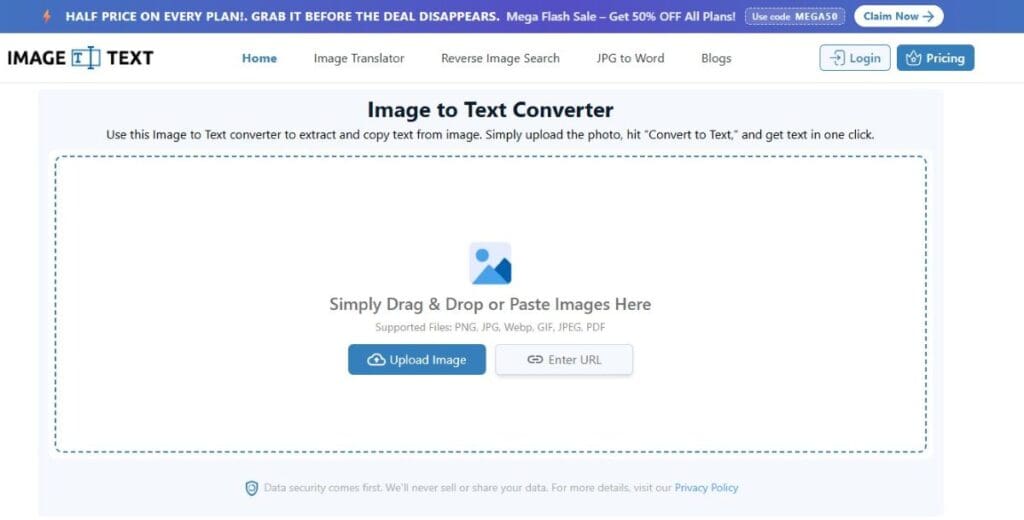
- Initiate the conversion process through the image to text action.
- Review the extracted text and copy or download the editable output.
Embedded Text Extraction Without OCR
So if you do not have access to an OCR tool, embedded text extraction offers a practical alternative in specific cases. Anyhow, keep in mind that this approach depends on the presence of an underlying text layer rather than visual character recognition.
- Start by checking the file type. Because digitally generated PDFs, exported reports, and presentation files often retain selectable text even when the content appears image-based.
- Open the file in a standard PDF reader or document viewer.
- Attempt text selection with the cursor. Successful highlighting confirms embedded text availability.
- Once selection is possible, copy the highlighted content and paste it into an editable document.
- The extracted text will retain original spelling and sequence. However, formatting may remain partially intact depending on the source structure.
You can rely on this method for converting system-generated static image data into editable documents. It can be a report exported from software, any slides converted into PDFs, or online statements downloaded directly from portals.
Also Read: The Speed Advantage of AI Document Review
OCR vs Non-OCR Methods for Converting Static Image Data to an Editable Document
| Criteria | OCR-Based Conversion | Non-OCR Methods |
| Applicable Data Type | Pixel-based images, scans, photos, screenshots | Digitally generated files with embedded text |
| Works on Scanned Images | Yes | No |
| Works on Photos | Yes | No |
| Text Recognition | Interprets visual characters | Copies existing text layer |
| Accuracy Level | High with clear images | Exact replication |
| Language Support | Multilingual support | Depends on source file |
| Handwritten Text | Supported in modern OCR | Not supported |
| Processing Time | Seconds | Instant |
| Formatting Retention | Partial to full | High |
| Scalability | High | Low |
| Use Case Fit | Large documents, automation | Quick extraction when text layer exists |
Quick Tips Static Image to Editable Text Conversion
- It is always best to start with the clearest image available, proper lighting, correct orientation, and minimal background noise improve conversion accuracy immediately.
- You should prepare the image before extraction by cropping unnecessary areas and aligning the text properly, this step reduces recognition errors and cleanup work later.
- In fact, also confirm the correct language before conversion, language-aware processing improves character recognition and preserves meaning.
- Never rely on screenshots when original files or scans remain available, original sources preserve text clarity and structure.
- Oh and always review the extracted text once, small corrections at this stage ensure clean, usable output.
Final Words: Static image data to an editable document
Let’s conclude our discussion on a clear note that it’s best to rely on OCR-based conversion methods for scanned or photographed content and embedded text extraction only for digitally generated files.
- Author
- Latest Posts

Charudatta Pathak was a student at St. Aloysius High School in Bhusawal, established in 1874, making it one of India’s oldest convent institutions. He earned his bachelor’s degree in mechanical engineering from SSVPS College of Engineering, Dhule in 1995, demonstrating exceptional academic achievement. Thereafter, he launched his career as a CNC programmer in a toolroom. He has utilized FANUC, Deckel, Maho, and Mikron controllers to operate 2-axis and 3-axis machines for the fabrication of jigs, fixtures, dies, and molds. He commenced his career as an academic in 1996, when he assumed the role of lecturer at SSVPS College of Engineering, Dhule. Additionally, he earned his post-graduate degree in CAD/CAM from L. D. College of Engineering, Ahmedabad, in 2000, and then acquired a Ph.D. from COEP in 2011 while concurrently engaged in teaching. Until 2023, he occupied many academic roles, including lecturer, assistant professor, professor, dean, principal, director, and vice chancellor at both public and private universities throughout India. From 2008 to 2010, he served as the project lead in the CAE department of a European multinational firm. During his 28-year professional tenure, he identified a need for dependable books targeted at students in grades 8 to 12, particularly for nascent career planning. He founded ENTECH Digital Magazine, a free monthly publication available on entechonline.com and magzter.com. Teens with a strong interest in Science, Technology, Engineering, and Mathematics (STEM) who aspire to pursue careers in these fields may find ENTECH Digital Magazine beneficial.